
Setup and Client Registration
Calling RapidScale Graph API's requires your client to supply a token from Microsoft's Identity Platform. An IT Administrator must add the RapidScale Graph API to your Microsoft tenant before any client applications can be registered. To do so, they can click the link below, and approve adding the application to your tenant:
Add RapidScale Graph API to your Tenant
Registering a Client
Next, the IT Admin should create a new App Registration for you in Azure Active Directory that will serve as the service principal of the application that calls the RapidScale Graph API:
The Overview screen will display the Application (client) ID. Be sure to store this as it is your Client Id.
Use the Certificates & secrets screen to generate a Client Secret. Store this too, as it cannot be retrieved once you leave this screen.
Now assign RapidScale Graph API permissions to your new app, which controls which API's are accessible:
Click on API Permissions. Then click Add a permission.
Select the tab labled: APIs my organization uses. Search for and select RapidScale Graph API:
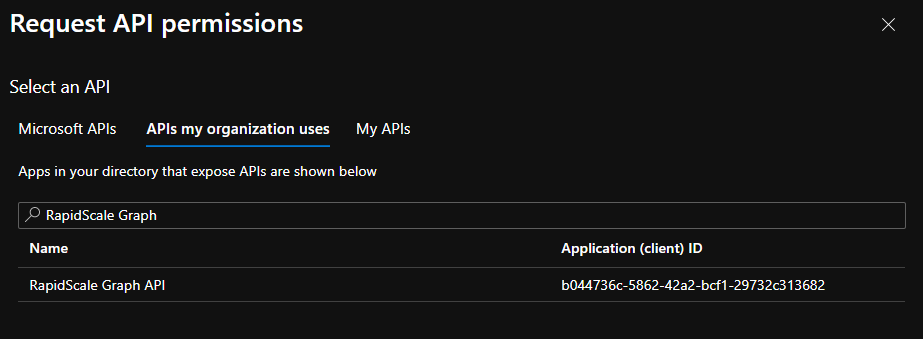
The Application permissions tab should automatically selected.
Click the checkbox next to any permissions needed by your caller. The API Documentation will clearly list any necessary permissions in the documentation.
Click the Add Permissions button. This will close the screen and assign the permissions.
Click the Grant admin consent for <company name> button to enable the recently assigned permissions.
Make sure you to convey the Tenant Id, the new Client ID and Client Secret to your development teams.
Calling the API
You need two pieces of information to call the RapidScale Graph: a Subscription Key and an OAUTH2 Access Token. Once signed in to the portal, you can add products to your Profile, and a set of subscription keys will be generated for you. Two are generated to enable easy key-rotation.
Using the Tenant ID, Client ID, and Client Secret from your IT admin, you can request a Bearer Token using a standard Client Credentials request. When making the request, the scope is always:
api://b044736c-5862-42a2-bcf1-29732c313682/.default
The request will look like:
POST https://login.microsoftonline.com/{{tenant_id}}/oauth2/v2.0/token
Content-Type: application/x-www-form-urlencoded

client_id={{client_id}}
&client_secret={{client_secret}}
&scope=api://b044736c-5862-42a2-bcf1-29732c313682/.default
&grant_type=client_credentials
Now that you have your Subscription Key and Access Token, you can make calls. Include these values using the Authorization and Ocp-Apim-Subscription-Key headers:
GET https://api.rapidscale.net/cox/finance/invoices
Authorization: Bearer {{access_token}}
Ocp-Apim-Subscription-Key: {{subscription_key}}
Happy coding!